Fox Business host Charles Payne said this week that the market will get through what he calls the "data center issue." Per the network's description of the segment, he discussed the importance of AI data centers and power infrastructure, recent project delays, grid constraints, and how vulnerable cloud services can be after a Google Cloud outage in the UK.
Whether the investing side works out is Payne's call, and I can't predict it. But the outage part lands close to home. If you use cloud storage, online docs, or AI tools, you depend on those buildings. Here's how to make your own setup tougher, no technical background needed.
What the data center issue means in plain English
AI tools, photo backups, streaming and online documents all run on servers in data centers. Those servers need a lot of electricity, and per the segment description, power infrastructure and grid constraints are part of the current concern, along with project delays. Payne's stated view is optimistic: this is something to work through.
For you, the takeaway is simple. The cloud is someone else's hardware, and hardware can have a bad day. The Google Cloud outage in the UK, as cited in the segment, is a reminder of that.
I don't have details on the outage's cause or length, so I won't guess. The practical lesson doesn't depend on them.
Step 1: Find out what you only keep online
Spend ten minutes on this audit. Open each service you use (Google Drive, iCloud, OneDrive, Dropbox, a notes app) and ask: if this was unreachable tomorrow, what would I miss?
- List your top five things: tax documents, family photos, work files, passwords, notes.
- Next to each, write where the only copy lives.
- Mark anything that lives in just one place.
Those marked items are your risk list.
Step 2: Keep offline copies of what matters
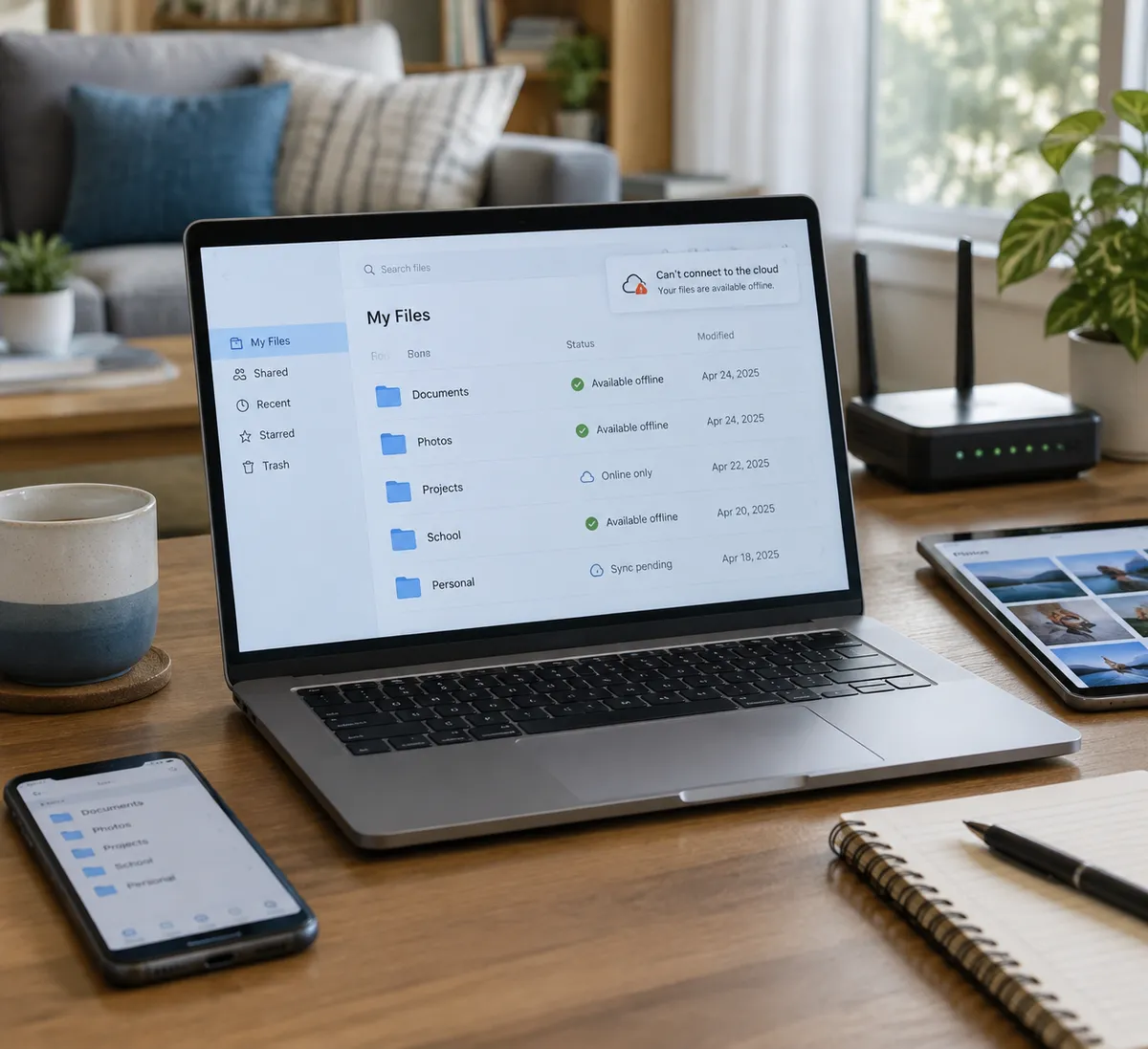
Most cloud apps let you keep files on your device. Settings names vary by app and version, so look for wording like "available offline" or "keep on this device."
On a phone
- In Google Drive, tap the three-dot menu next to a file and choose Make available offline.
- In the Files app on iPhone, files downloaded to your device show without a cloud icon. Tap the cloud icon to download one.
- For photos, check that your gallery app is storing originals on the device, not only thumbnails.
On a computer
- In Google Drive for desktop, right-click a folder and choose the offline option.
- In OneDrive, right-click a file and choose Always keep on this device. This is just a feature name; the app is made by Microsoft, and this site is independent of it.
- In Dropbox, use Make available offline on the file or folder.
Step 3: Add a simple backup you control
Follow the old 3-2-1 idea: three copies, on two kinds of storage, with one somewhere else. For most people that means:
- Your device (copy one).
- An external drive or USB stick at home (copy two).
- Your cloud account (copy three, the off-site one).
Plug in the drive once a month and drag over your risk-list folders. Set a recurring calendar reminder so you don't rely on memory.
Step 4: Make sure you can still sign in
Outages often hit the apps you need to reach everything else. Take these steps now:
- Print or write down your recovery codes for your main email and phone accounts, and store them somewhere safe.
- Keep your boarding passes, tickets and insurance cards as screenshots or PDFs on your phone.
- Save key phone numbers and addresses outside a cloud-only contacts app.
Step 5: Have a fallback for AI and online tools
If you use AI assistants or web-based writing and design tools for work, expect that one will occasionally be down. Prepare in advance:
- Draft important text in a local app (Notes, TextEdit, Notepad, or a word processor saved to your device), then paste it into online tools.
- Keep a second tool you've already tried. If one chatbot or editor is unavailable, you won't waste time setting up a new one under deadline.
- Export finished work as a file instead of leaving it only inside the app.
Step 6: When something is down, check before you troubleshoot
Before resetting your router or reinstalling an app, find out whether the problem is yours.
- Try the same service on another device or on mobile data instead of Wi-Fi.
- Search the provider's status page. Most big cloud companies publish one.
- Check whether other services are failing. If several are, the problem is likely not on your end.
- If it's the provider's issue, wait and use your offline copies. Repeated logins and resets can sometimes lock you out for a while.
What to make of the bigger picture
Payne's message, per the segment description, is that this pressure is workable. That's his take on markets and the economy, and it is not a promise about any stock or timeline. Project delays and grid constraints are real topics in the segment, so it's reasonable to expect that cloud services will keep growing while they sort out capacity.
You don't have to follow any of that closely to protect yourself. Services may run smoothly for months, and then one afternoon go dark.
Pick one folder from your risk list today, make it available offline, and copy it to a drive. That one habit covers most of what an outage can cost you.