You don't need to be a security professional to benefit from a vulnerability chart. A simple weekly habit of looking at one, then checking your own devices, can keep you ahead of most routine risks. This guide shows you how to read a CVE tracker and turn what you see into a short, doable update routine.
What a CVE tracker actually shows
A CVE is a public identifier for a known security flaw in software or hardware. A CVE tracker collects those entries and charts them over time.
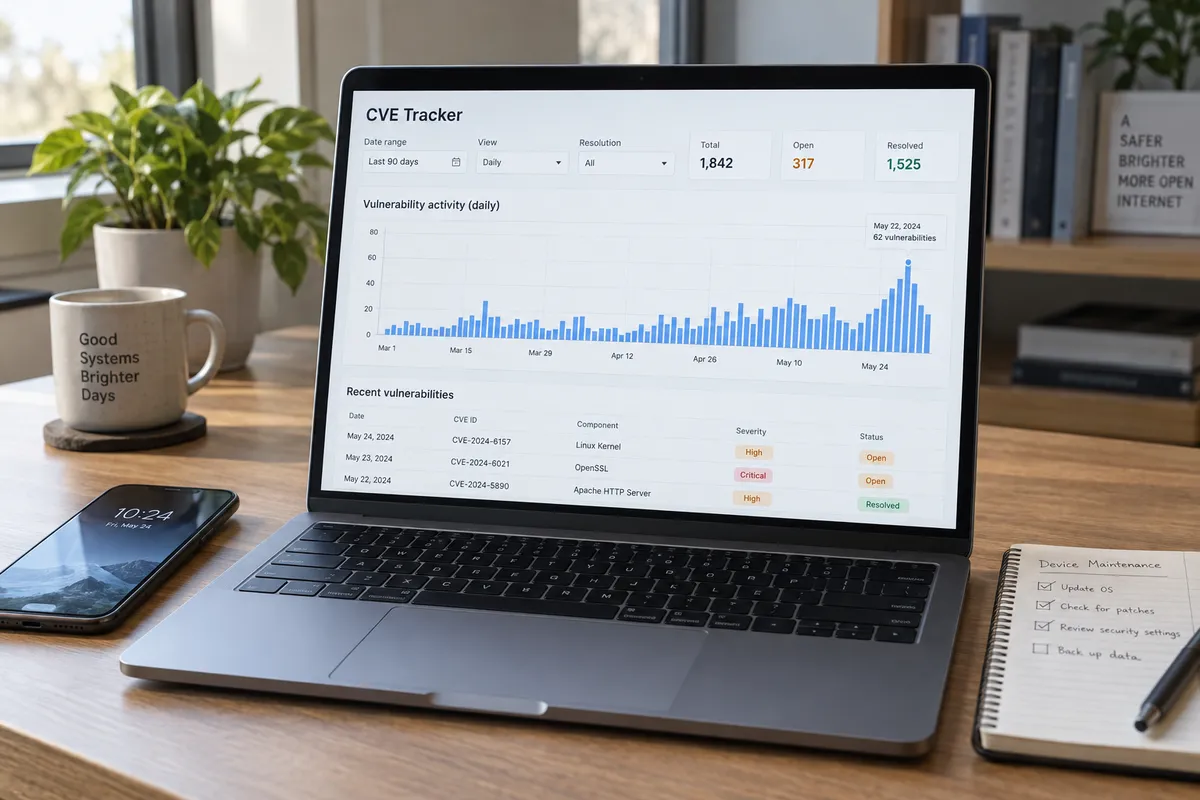
A tracker posted to Hacker News by 0xosprey (cve.0xosprey.com) is a good example. Per its page, it's a dashboard for monitoring vulnerability activity over time, with controls for resolution, date range, view, and mode. The current view shows daily CVE activity across the last 90 days. I can only describe what that page presents at a high level, so treat the specifics below as a general reading method, not as findings about any particular numbers.
Step 1: Pick the right time window
The 90-day view is a useful default because it's long enough to show a pattern and short enough to stay relevant. A single day tells you almost nothing. A year smooths away recent changes.
If your tracker has a date range control, start at 90 days. Then try a shorter range to zoom in on anything odd.
Step 2: Find the baseline
Before you look for spikes, look for the normal. Scan the chart and note the typical height of the daily bars or line. That's your baseline.
Write down a rough number. Next time you check, you'll know quickly whether things look calmer, busier, or about the same.
Step 3: Treat spikes as a prompt, not a panic
A tall day on the chart means a lot of CVEs were recorded that day. That can happen for ordinary reasons, such as a vendor publishing a batch of fixes at once. It may also reflect a widely used product with many issues.
The chart alone can't tell you which. So use a spike as a cue to ask two questions:
- Does any software I use come from a vendor that published a lot of fixes recently?
- Are there update notifications waiting on my devices?
That's the whole job. You're not investigating every entry; you're using the chart to remind you to update.
Step 4: Turn the chart into a patching routine
Here's a simple routine for a typical home or small-office setup. Do it once a week, ideally on the same day.
Update the things attackers reach first
- Web browser. Open the menu, find About, and let it check for updates. Restart when asked.
- Phone. In Settings, open the system update section for your iPhone or Android device and install anything pending.
- Computer operating system. Check Windows Update, macOS Software Update, or your Linux package manager.
- Router. Log into its admin page or app and look for a firmware update. Many people skip this, so it's worth a look.
Then handle everything else
Apps, browser extensions, printers, smart home hubs, and cameras come next. Turn on automatic updates wherever the option exists, so you rely on memory less.
Step 5: Know when to speed up
If the tracker shows a busier stretch than your baseline, move your weekly check earlier or do it twice that week. If it's quiet, stick to the routine. The point is to match your effort to the activity without obsessing over it.
Why non-experts should look at this data
Security feels abstract until you see it as a steady stream of flaws being found and fixed. A tracker makes that visible. It also shows why updates aren't optional: new entries show up every day, and fixes are how you stay protected.
If you run a small business or manage devices for family, a five-minute look at the 90-day view can help you decide whether this week's updates can wait until the weekend or should happen today.
What a tracker can't tell you
Be careful about what you conclude from the chart:
- Count is not severity. Many entries in a day doesn't mean any of them are serious for you.
- Count is not relevance. Most entries will concern software you've never installed.
- Fewer entries is not safety. A quiet day doesn't mean your devices are fully patched.
For anything specific, check the vendor's own security notes for the products you use.
Your next step
Open a CVE tracker today, set it to 90 days, jot down the baseline, and then run through the four updates above. Put a repeat reminder in your calendar for the same time next week.