Fox Business host Charles Payne says the market can get through what he calls the "data center issue." His segment on "Making Money" touched on AI data centers, power infrastructure, project delays, grid constraints, and the vulnerability of cloud services after a Google Cloud outage in the UK, per the show's description.
Investors are asking whether this is a temporary bottleneck or a bigger risk to the AI growth story. You have a different question: if the buildings behind your apps are under strain, what can you do so your own work doesn't stall? This guide gives you a practical answer. It won't predict stocks, and the details of the outage and delays aren't covered here beyond what was reported.
The data center issue in plain English
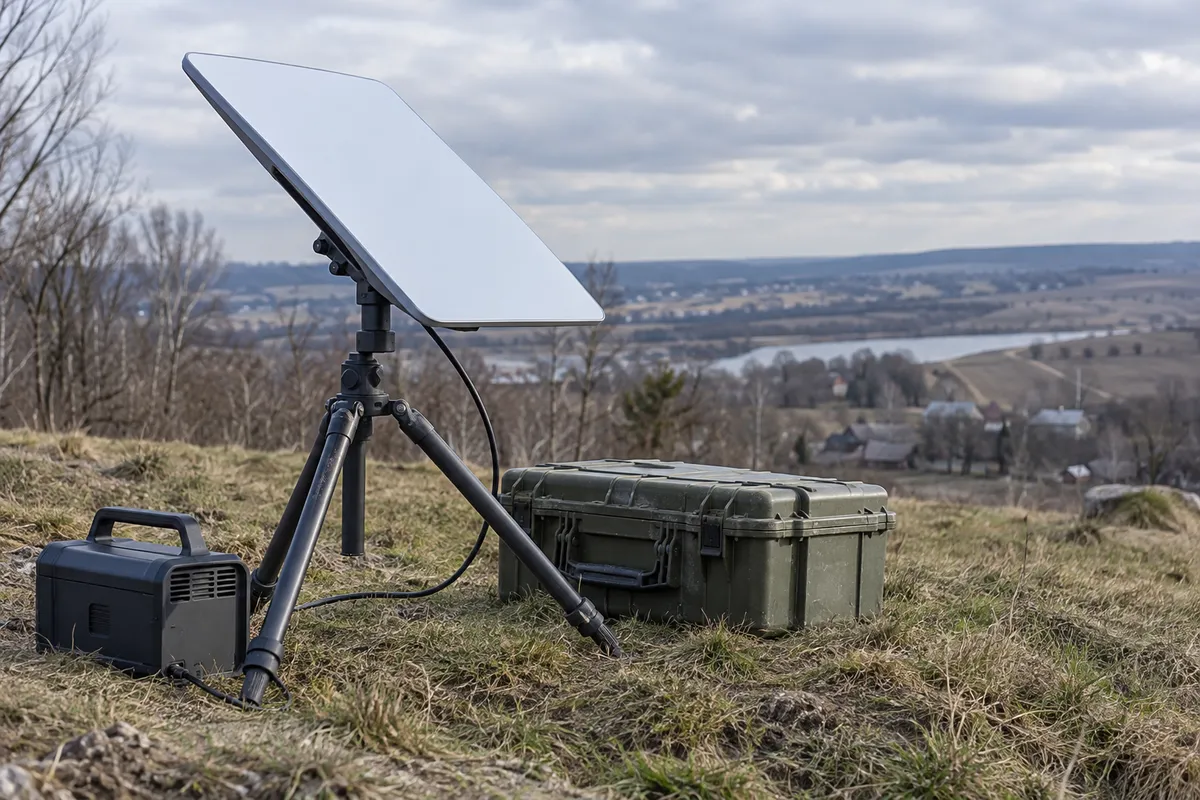
When you use a cloud app, your phone or computer is mostly a window. The real work happens in a data center, a facility full of servers that needs a steady supply of electricity and a connection to the power grid.
Per the segment's description, the pressure points are:
- AI demand: AI services depend on data centers, so the push for more AI puts more weight on that infrastructure.
- Power and grid limits: The segment points to grid constraints and project delays.
- Fragility: A Google Cloud outage in the UK was cited as an example of how vulnerable cloud services can be.
Payne's take, as summarized, is optimistic: the pressure is something to get through, not a lasting crisis. Whether he's right is a question for investors. For everyday users, the lesson holds either way: any cloud service can have a bad day.
Step 1: Find out what you depend on
Spend ten minutes listing the cloud services you'd miss most. Open a note on your phone or computer and write down:
- Where your documents live (Google Drive, OneDrive, iCloud, Dropbox, or similar).
- Where your photos are backed up.
- Which email and calendar service you use.
- Any app you use for work that only runs in a browser.
- Your password manager.
Mark the ones where an outage would cost you time or money. Those get the next steps first.
Step 2: Make key files available offline
Most major storage apps let you keep a local copy of chosen files. The menu names differ by app and version, so look for wording like "Available offline" or "Always keep on this device."
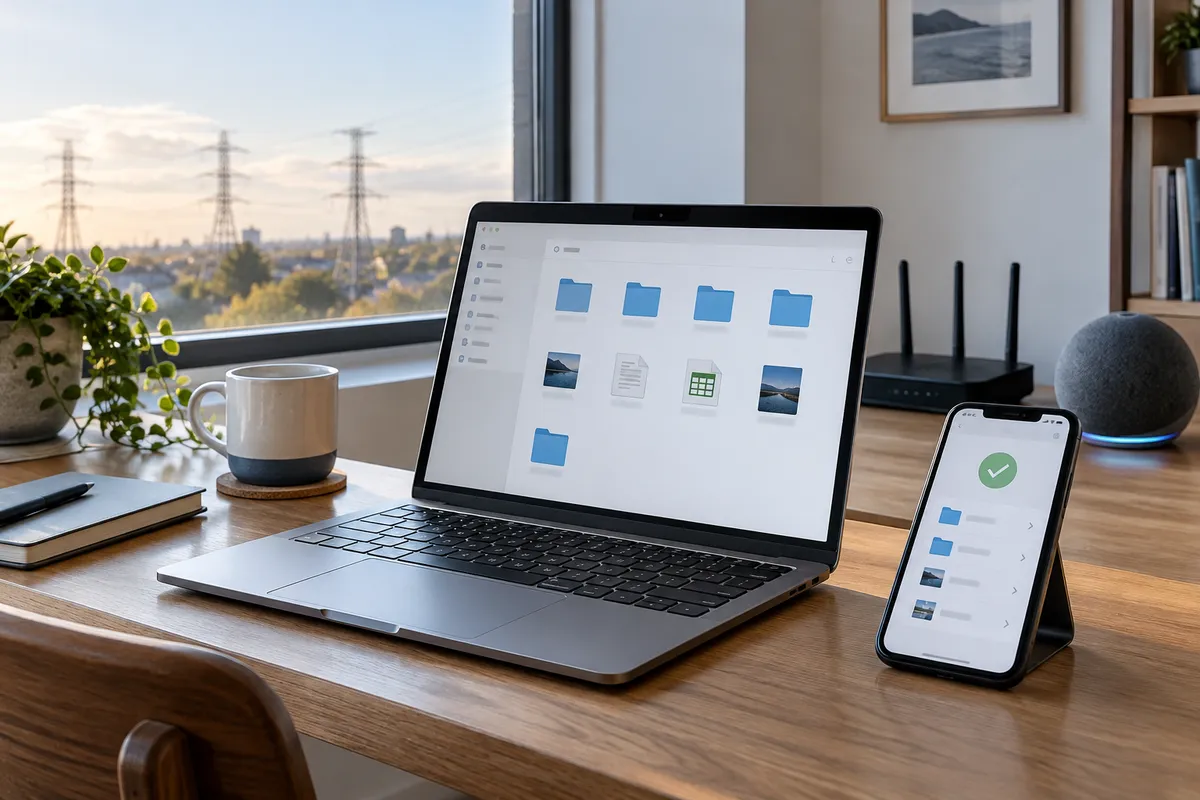
On a phone
- Open your storage app (Drive, Dropbox, OneDrive, or Files for iCloud).
- Find the file or folder you need most, such as a boarding pass, a lease, or a work document.
- Tap the three-dot or More menu next to it.
- Choose the offline option (often labeled "Available offline" or "Make available offline").
- Check that a small checkmark or download icon appears.
On a computer
- Open your sync app's folder in File Explorer (Windows) or Finder (Mac).
- Right-click the folder you want.
- Choose the option that keeps files on the device (wording varies by app).
- Wait for the sync icon to show the files are fully downloaded.
Keep this list short. Offline copies use storage space, so pick the files you would actually need in a pinch.
Step 3: Keep a second copy of what matters
One cloud account is one point of failure. For your most important files and photos, add a second home:
- An external drive or USB stick that you connect and copy to once a month.
- A second cloud service for a small set of critical documents.
A simple rule: important things should exist in two places, and at least one should be something you can hold.
Step 4: Know how to tell an outage from a problem on your end
When an app stops loading, don't spend an hour resetting your device if the service itself is down. Work through this order:
- Test another site or app. If everything fails, the issue is your connection. Restart your router and try again.
- Try a different device or network. Switch your phone from Wi-Fi to mobile data. If the app works, your home network is the problem.
- Check the provider's status page. Search the service name plus "status." Most big providers publish one.
- Search for reports from other users. Many people reporting the same problem at once points to a provider issue.
- Wait, then retry. If it's the provider, restarting your device won't help. Go to your offline copies instead.
Step 5: Protect yourself from a lost login
Outages are a poor time to find out you can't sign in elsewhere. Do this once:
- Save backup codes for your key accounts somewhere offline, such as a printed sheet in a drawer.
- Make sure your password manager has an offline-accessible option on your phone.
- Keep important contact details and travel confirmations saved as screenshots or PDFs.
A reasonable way to think about it
Payne's view, per the segment, is that the industry will work through its data center problems. That may prove true, and the infrastructure may catch up. Even so, building new power and server capacity is a big, slow job, and the reported delays and grid limits suggest it won't be smooth everywhere. That's our read, not a forecast from the segment.
Your setup doesn't need to wait on any of that. Pick the five files you'd be stuck without this week, mark them available offline, and copy them to a drive. It takes about fifteen minutes, and it works no matter how the data center story ends.