Federal prosecutors have made serious allegations against a former OpenAI engineer, and whatever the court decides, the case raises a question any employer or small team can act on: who has access to what, and would you notice if something looked off? This article uses the case as a starting point for a practical security checklist you can apply this week.
What prosecutors allege
Per Fox News, federal prosecutors allege that Abdulrahman Alfozan, a former OpenAI engineer, planted recording devices inside OpenAI facilities. They also say he was in frequent contact with Saudi royalty and searched internal company records tied to Saudi engagements before his arrest. Prosecutors argue the case may involve national security risks, foreign government support, and potential flight risk. The headline on the Fox News report also refers to a foreign government helping the accused's family leave the US.
These are allegations from prosecutors, not proven facts. Nothing here should be read as a finding of guilt. The details beyond what Fox News reported aren't something we can verify, so this piece sticks to the lessons that hold no matter how the case turns out.
Why this matters beyond one company
The reporting frames AI companies as increasingly treated as strategic national-security assets, which makes insider threats and foreign-influence concerns more urgent. You don't need to run an AI lab for the core lesson to apply. The people with legitimate access are often the hardest risk to see, because they don't have to break in.
Your own setup is probably smaller, but the same basic questions apply: who can see sensitive files, who can enter sensitive spaces, and who would notice unusual behavior?
Step 1: List what actually matters
Before you lock anything down, decide what you're protecting. Open a blank document and write down:
- Your three most sensitive types of information (customer data, financials, unreleased work).
- Where each one lives (a cloud drive, a laptop, a shared inbox, a paper file).
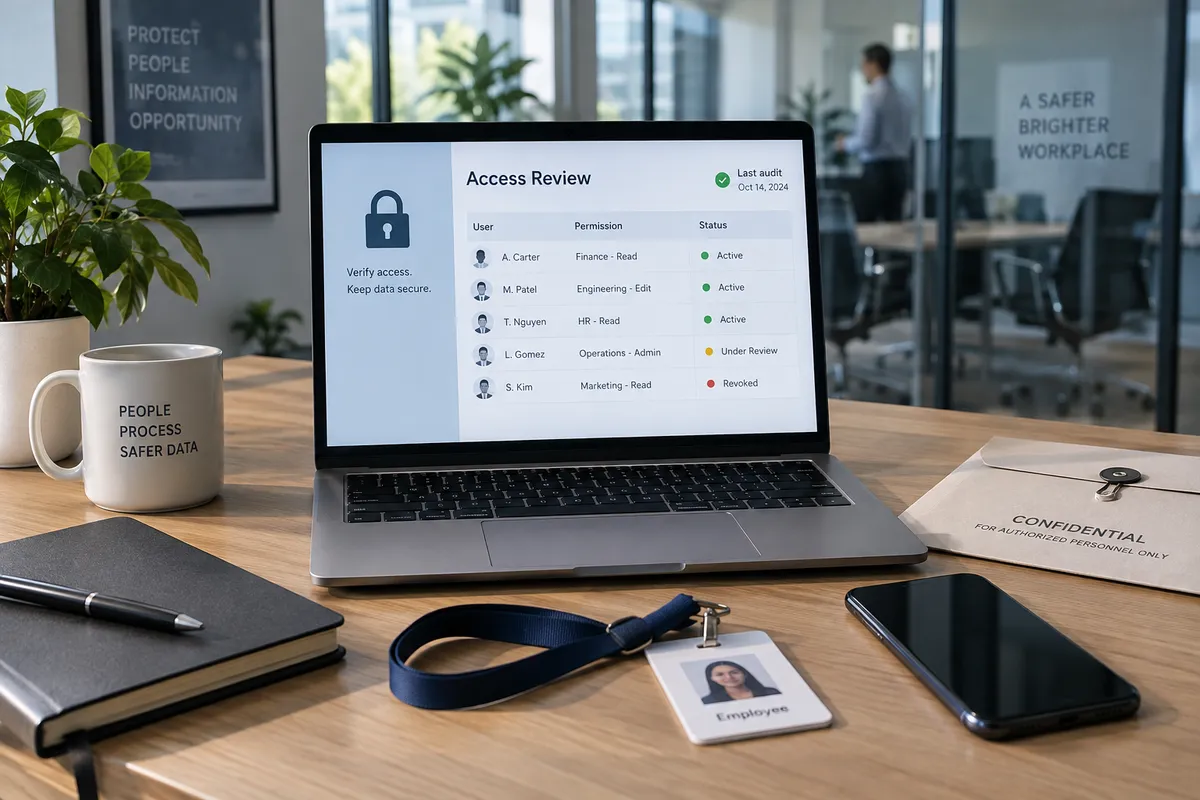
- Who currently has access to each.
Most people find at least one surprise, such as an old contractor who can still open a shared folder.
Step 2: Apply least-privilege access
Give each person only the access their job requires. In practice:
- In Google Drive, Dropbox, or any shared storage, open the sharing settings on sensitive folders and switch from "anyone with the link" to named people.
- Prefer "Viewer" over "Editor" unless someone needs to change files.
- Put sensitive material in its own folder so you can manage it separately.
The allegation that an engineer searched internal records on a specific topic is a reminder that broad search access can expose more than a role needs.
Step 3: Turn on activity logs
You can't spot unusual behavior if nothing is recorded. Most business-tier tools include audit or activity logs:
- In Google Workspace, admins can find the audit and investigation tools in the Admin console.
- In Microsoft 365 or Dropbox Business, look for the admin activity or audit log section.
- On a personal or family setup, check the "recent activity" or "devices signed in" page of your main account.
Check them on a schedule, say the first Monday of each month, and look for logins at odd hours, large downloads, and unfamiliar devices.
Step 4: Handle physical access too
The allegations involve physical devices placed inside facilities, a reminder that security isn't only digital. For a home office or small business:
- Know who has keys or door codes, and change codes when someone leaves.
- Take a quick look at meeting rooms and shared spaces for unfamiliar devices, such as odd chargers, USB gadgets, or objects you don't recognize.
- Keep sensitive conversations out of spaces with shared access when you can.
If you find something suspicious, don't tamper with it. Report it to whoever handles security or, if appropriate, to law enforcement.
Step 5: Build a clean offboarding routine
People leave jobs and projects constantly, and access often lingers. Create a short checklist you run every time:
- Disable accounts and revoke shared-folder access.
- Sign the person out of all devices and reset shared passwords.
- Collect keys, badges, and company hardware.
- Review recent activity for the final few weeks.
Ten minutes on this checklist closes one of the most common gaps.
Step 6: Make reporting easy
Technical controls catch only so much. Tell your team who to contact about anything that seems off, and make clear that raising a concern is welcome. People notice things long before a log does.
Keep perspective
Security measures like these are about reducing risk, not treating colleagues as suspects. Most access is legitimate, and good controls protect honest people by making clear what they can and can't see.
The case is still unfolding in court, and prosecutors' claims will be tested. Your move now: pick one sensitive folder, check who can open it, and remove anyone who doesn't need to.